Libraries
Libraries may include components, colors and typographies. Learn how to create and manage them to better organize the pieces of your designs and speed your workflow.
File libraries
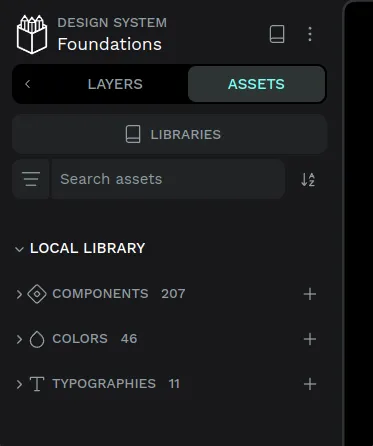
Each file has its own file library which is where the assets that belong to this file are stored.
You have two ways to access the file library from the file workspace:
- Click the assets tab icon at the left sidebar.
- Press Alt/⌥ + i.
Shared libraries
Publish as shared library
You can publish any regular file as a shared library. This means that the file library of this file will be available to be connected to other files that exist in the same team, so its library assets can be reused.
There are two ways to publish a library:
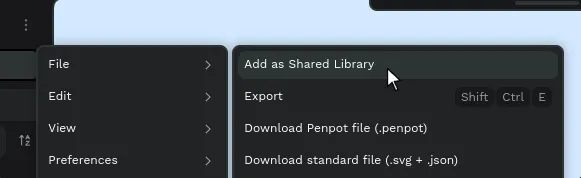
- Using the file main menu.
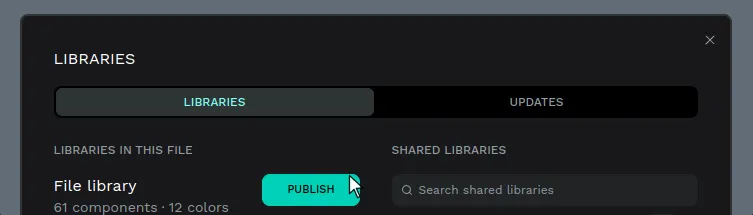
- From the libraries panel, that you can launch by clicking on the "Libraries" button that is found at the assets tab.
Unpublish a shared library
You can unpublish any library anytime the same way you can publish it, both from the file menu and the libraries panel.
Unpublishing a library will disconnect it from the files where it was connected. The assets that have already been used in other files will remain, but no longer linked with the now unpublished library.
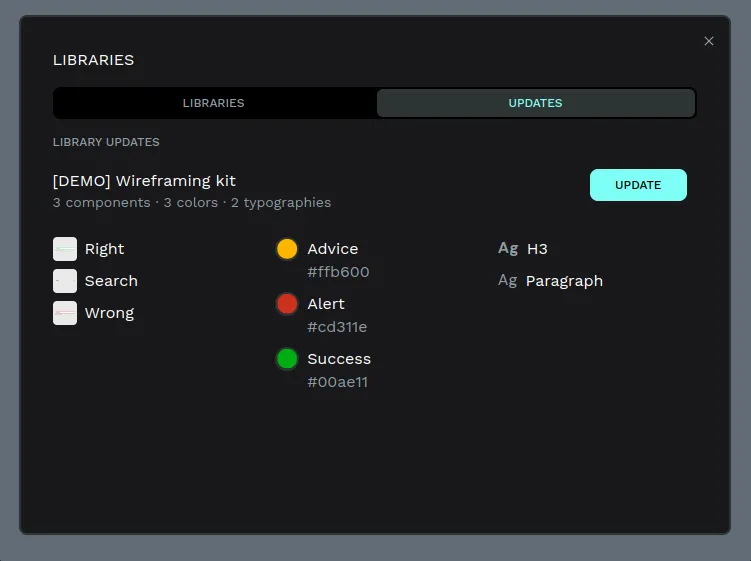
Library updates
Connect shared libraries
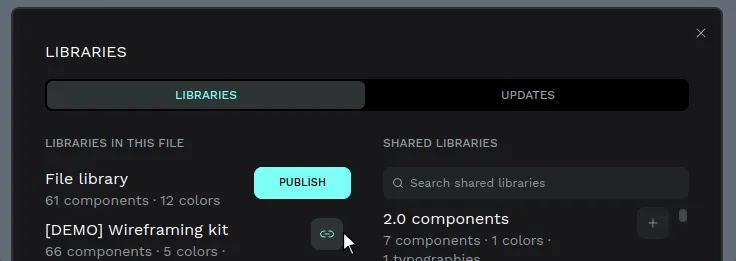
To add a Shared Library from another file, launch the libraries panel, then search and select the available libraries. If you see the message "There are no Shared Libraries available", start by publishing other files as a shared library or add from our Libraries & templates.
Disconnect shared library
You can disconnect any library anytime from the libraries panel just by clicking on the disconnect button.
Use shared libraries
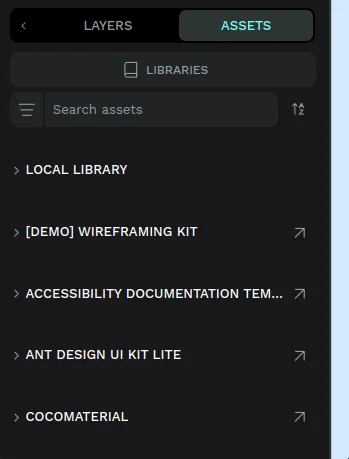
Shared libraries will be listed at the assets panel, at the workspace left sidebar. You can expand and collapse them to access the assets of each connected shared library.
Open shared library file
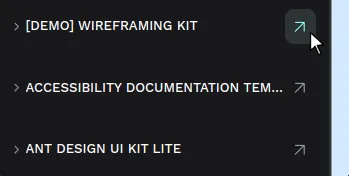
Click on the arrow icon at the right of a shared library name to go to the file where the library is and edit its contents.